

Frequently Asked Questions
Do you have questions to about tax preparation, audits or any other service we provide when working with Walker & Armstrong?
HOW CAN WE HELP YOU?
What is the client portal and do I need to sign up for it?
This is a secure and centralized online hub that you can use to manage all of your tax-related documents and find any incomplete tasks. You do not have to sign up for it but we strongly recommend that you do.
Will I receive a notification when my return is ready?
Yes, when the tax returns are sent to you, they will be delivered by SafeSendReturns. Please look for an email from noreply@safesendreturns.com and you might want to check your spam and/or junk folders. Also, please add this email to your safe sender list.
Do I need to email my tax representative once I upload my documents?
No. Once you have completed any part of your tax return process (uploading documents, signing, etc) it will email our administrative department who will then let the team know.
Will I have the option to download and print my return?
Absolutely! You will be able to download any returns before or after you sign your return. You will also have access to your client center where all of your information is stored as well
Can I set up reminders for my estimated payments?
If you have estimated payments, SafeSend will automatically send you a reminder to the email address that you received your tax documents to 7 days prior to the due date.
I have received an email from SafeSend in regards to a prior year tax return, what do I do?
 Enlarge Image
This email is most likely in reference to a reminder email that was set up for a tax payment that is due.
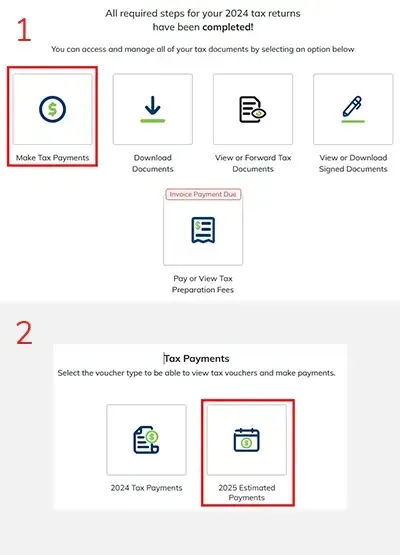
1. When you log in to your SafeSend account and pull up your 2024 return dashboard, there will be a message at the top of the screen that says “All required steps for your 2024 tax returns have been completed!” Underneath that will be an option to “Make Tax Payments”, you will want to click on that option.
2. After that your next two options will be about making your Tax Payments. You can select the option to make your prior year “Estimated Payments”. Once that opens up, on the left hand side it will show the list of payments due along with their amounts and due dates. If you have further questions beyond this, please contact our administrative team who can assist you further.
Audit related: I continue to get notifications from SmartSheet, even after I provided the requested information.
This can happen if you don’t change the Status column to completed. In Smartsheet, the Status column is usually the first one. When you click inside of the cell for the row you are trying to reference, there will be a drop-down menu. Change the status to completed and you should not receive any more emails.
STILL HAVE QUESTIONS?
Please note that an asterisk (*) below indicates required information. Your message will not be sent if a required field is left blank.
After you click "Send," the confirmation message will appear.
If the message form is not accessible via your browser, please send your questions via email.